

Close Menu

    Subscribe to Updates

    Get the latest creative news from FooBar about art, design and business.

    What's Hot

    Zoho Projects: Key Features and Overview

    October 27, 2025

    Zoho CRM Comprehensive Overview

    October 27, 2025

    Zoho Desk: Guide and Comparison

    October 27, 2025
    Facebook X (Twitter) Instagram
    Tech How To DoTech How To Do
    • Tech News
    • Home
    • Windows
      • Windows Server
    • Apple
    • Linux
    • WWW
      • E-commerce
      • Shopfiy
    • Mobile
      • Android
      • iOS
    • Cloud
    • Office
    • Tech Tips
    • Gaming
    • HRMS
      • Admin
      • Employee
    Tech How To DoTech How To Do
    Home»Office»How to Enable Macros in Microsoft Excel
    Office

    How to Enable Macros in Microsoft Excel

    Faris KhanBy Faris KhanJuly 18, 2022Updated:October 27, 2025No Comments2 Mins Read
    Facebook Twitter Pinterest Telegram LinkedIn Tumblr WhatsApp Email
    Enable Macros in Excel
    Share
    Facebook Twitter LinkedIn Pinterest Telegram Email

    Utilizing Microsoft Excel macros, you can execute a prerecorded set of steps to automate numerous of your redundant tasks. You’ll need to turn on the option before you can use it. This article will show you how to enable macros for all Excel spreadsheets.

    Be Smart When Enabling Macros

    Activating macros is not always secure, and you should exclusively use them when you’re confident of the source of your spreadsheets. Useful macros preserve your time by automating your tasks, but inadequate macros can harm your device.

    For instance, if you’ve acquired your spreadsheet from an unknown source, you shouldn’t rely upon it to run any macros as you aren’t confident what it will do. However, allowing your spreadsheets to execute macros should be okay if you know the source and trust them. Keep reading if you want to enable Macros in Microsoft Excel.

    Enable Macros in Microsoft Excel for all Spreadsheets

    It’s not recommended to enable macros for all your spreadsheets, but if you’re certain you’ll only open secure and authorized files, you can activate the feature as described below.

    If you’re a Windows user, open Microsoft Excel on your device first. Once it opens, click File at the top left, and then from the Excel’s left sidebar, click “Options.”
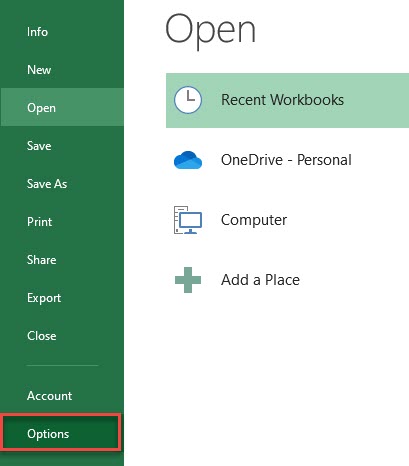
    On the “Excel Options” screen, select “Trust Center” from the sidebar on the left. Then, click the “Trust Center Settings” option on the right.

    Once you get to the “Trust Center” screen, from the sidebar on the left,  select “Macro Settings.” Next, on the right side, activate the “Enable VBA Macros (Not Recommended; Potentially Dangerous Code Can Run)” option. Then click “OK” at the bottom.

    That’s it. Microsoft Excel will now let any spreadsheet run macros.

    This blog post is powered by AIIT Solutions.

    Share. Facebook Twitter Pinterest LinkedIn Tumblr Email
    Faris Khan
    • Facebook
    • X (Twitter)
    • Instagram
    • LinkedIn

    Faris is a focused and skilled Technical Content Writer, SEO Expert, Graphic Designer, Social Media Content Management, and a lifetime student. Seeking to be inspired, envision the unlikely, and be surrounded by those who bring out the best in him.

    Related Posts

    How to install the File Viewer Plus App in Windows 10

    June 22, 2024

    How to Split names into separate columns in the Excel

    June 22, 2024

    How to Split names into separate Columns in the Excel

    August 4, 2023

    How to Install Autodesk AutoCAD 2022

    October 3, 2022

    How to Remove an Email Account From Microsoft Outlook

    August 9, 2022

    How to AutoFill Dates in Microsoft Excel

    July 26, 2022

    Comments are closed.

    Recent Posts
    • Zoho Projects: Key Features and Overview
    • Zoho CRM Comprehensive Overview
    • Zoho Desk: Guide and Comparison
    • Change your SharePoint domain name
    • HRMS Assets Module: Features, Management, and User Guide
    Categories
    • Android
    • Apple
    • Beauty
    • Building
    • Business
    • Construction
    • Design
    • Education
    • Fashion
    • Food
    • Games
    • Health
    • Lifestyle
    • Mobile
    • Nature
    • News
    • Photo
    • Politics
    • Sports
    • Tech News
    • Tech Tips
    • Technology
    • Travel
    • Video
    Tags
    Business Case Study Creative Education Global Insights Market Security SEO Marketing Smartphone Solutions VPN
    © 2025 Tech How To Do. Develop, Designed and Maintained by AIIT SOLUTION
    • Home
    • Tech
    • Gadgets
    • Mobiles
    • Buy Now

    Type above and press Enter to search. Press Esc to cancel.

    Ad Blocker Enabled!
    Ad Blocker Enabled!