


The Run Command box is a feature of all Microsoft Windows. It is a very powerful tool but it is often Ignored or barely used by the average user. However, The Run command can be very useful for navigation towards a specific directory, settings, app, or information in Windows 10 with a few easy commands. If you know and remember and use these run commands you can easily navigate deeply into the Windows directory, settings, app, or information.
All of these commands that I am about to show you will only work if you use the Run command box in Windows 10. I will explain all the individual commands and their functions.
Useful Windows 10 Commands
To use these commands you first need to open the run box. You can either tap Windows Key+R or right-click on the Start Menu and select Run.

After opening the run box here is a list of a few commands that you can use. I will use brackets to highlight these commands but in the run box, you just have to type the specific commands without brackets.
- Use this Command to Open The Home folder ( . )
Just a simple dot ( . ) in the run box will directly open your home folder.


- Type this command to open up the User’s folder ( .. )
Typing two dots ( .. ) in the run box will open the user’s folder.
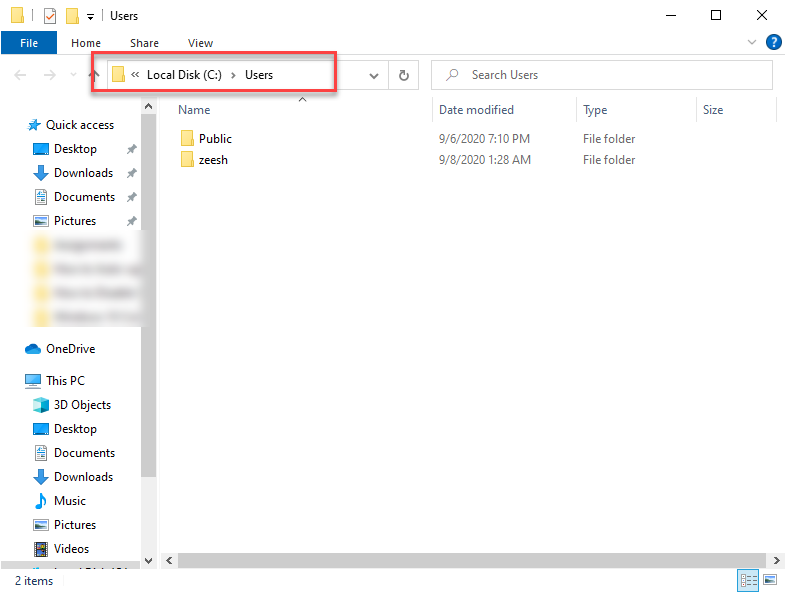
- Use this command to open the Windows Drive ( \ )
Putting a backslash ( \ ) command in the run box will open the Windows Drive.

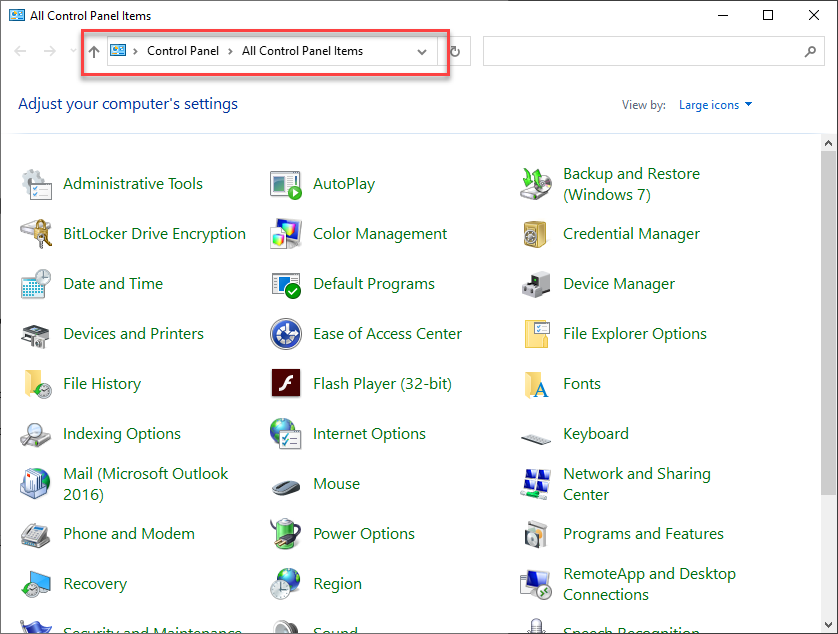
- Type in this command to Open the Control Panel ( control )
Typing control in the run box will open your control panel
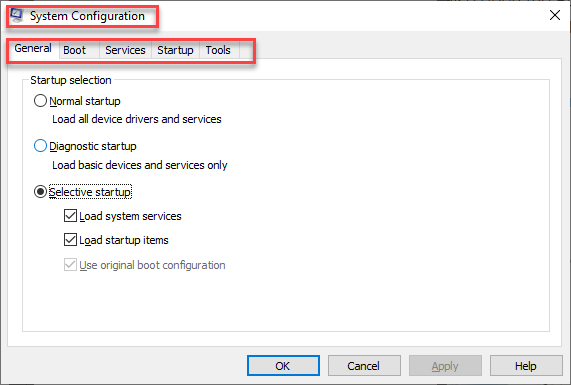
- Open the System Configuration app by typing ( msconfig )
You can use this app to enable or disable Microsoft services or open the Windows tool such as computer management, event viewer, etc. In the past you could also disable applications from starting with Windows bootup from here however now that option is shifted to the task manager. You can still make your way to that option by using this app.
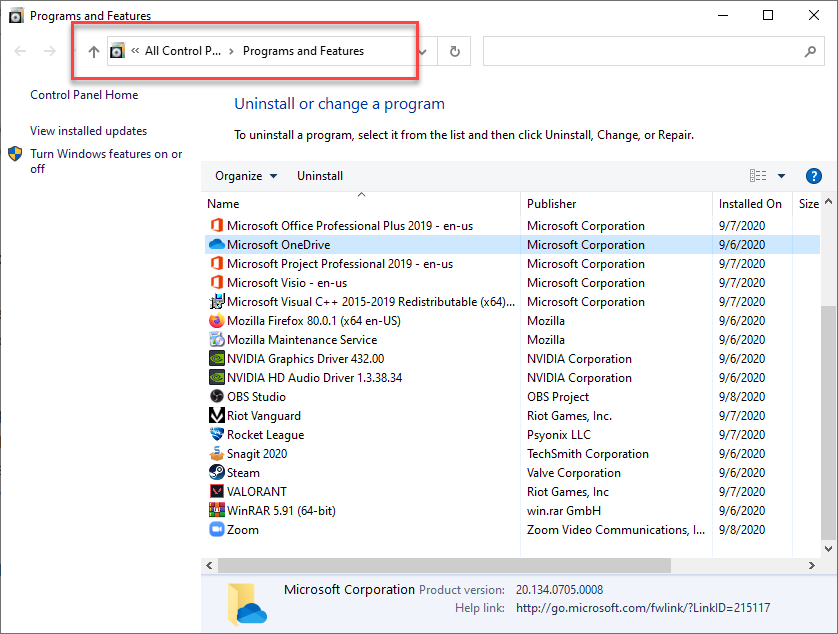
- Type this command to open Programs and Features ( appwiz.cpl )
This will open the program and features option from here you can uninstall programs that are installed in your computer
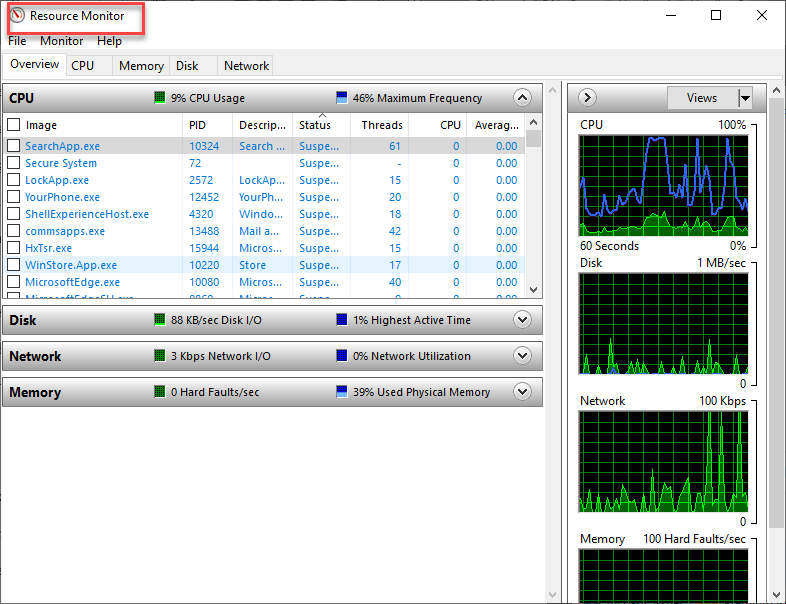
- Use this command to view your Resource Monitor ( resmon )
Resource monitor is one of my favorite functions of Windows 10. With the resource monitor, you can easily monitor the usage of all your hardware at once. You can also end a process directly from the Resource monitor.
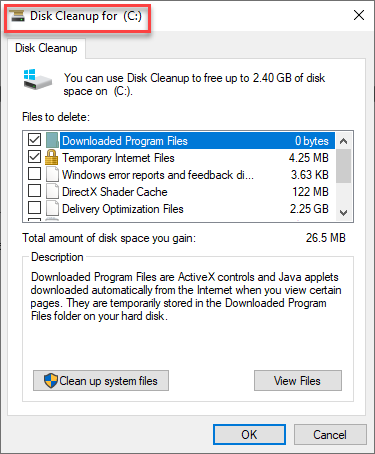
- Open the Disk Cleanup Utility by using this command ( cleanmgr )
This Disk Clean up utility can be used to clean up temporary files and gain disk space.
A few Extra Commands
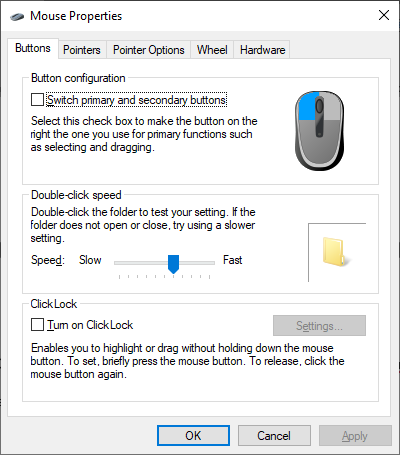
- Open your Mouse Settings ( main.cpl )
Use this command to open your mouse settings. Normally, you will have to open the mouse settings from the control panel but this is the fastest way to access your mouse settings.
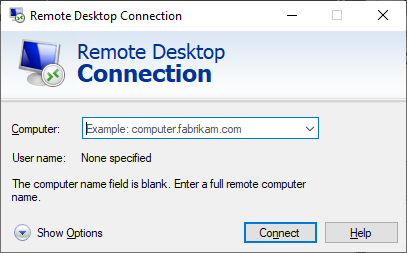
- Open Remote Desktop ( mstsc )
Use this command to open the remote desktop option.
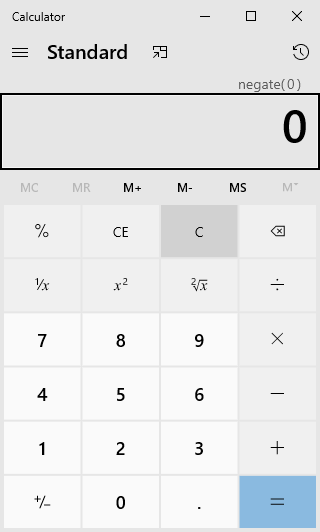
- Use these commands to open common apps ( calc, notepad, etc.)
Using commands such as calc will open the calculator, Notepad command will open the notepad and the MSPaint command will open Microsft Paint.
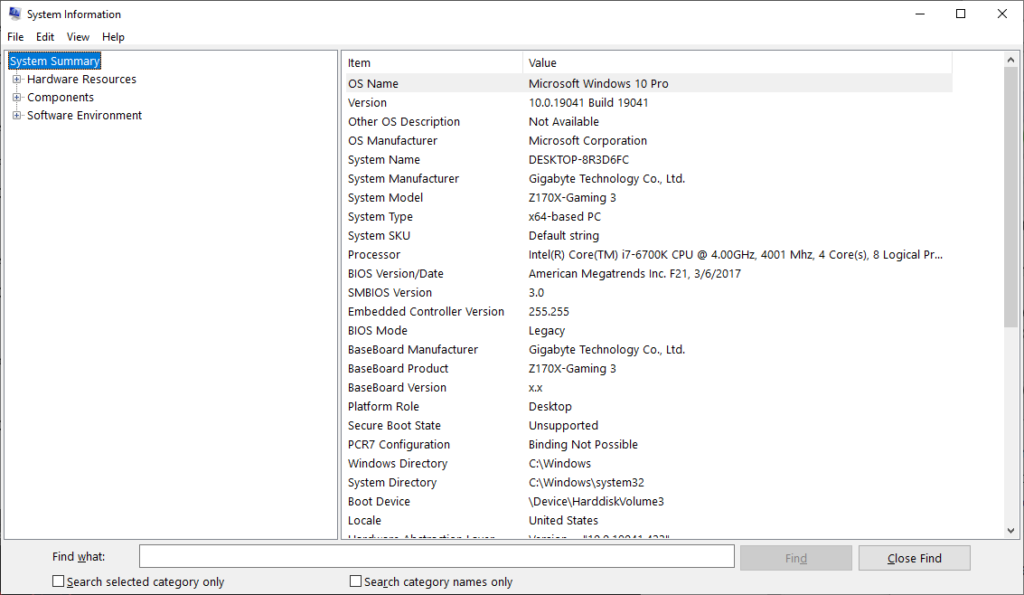
- If you want to see your complete System Information use this command ( msinfo32 )
These were the few useful commands which might come in handy even though Windows 10 is very user friendly now and you can open anything by just typing in it search but knowing these commands will add to your knowledge and might be useful in the future.
