








In today’s fast-paced corporate environment, effective communication is key to keeping employees informed. An efficient Human Resource Management System (HRMS) allows organizations to manage company announcements in HRMS seamlessly. HR teams can add an announcement in HRMS to ensure important updates reach employees quickly and efficiently. Whether it’s policy changes, event notifications, or general updates, HRMS simplifies the process of posting and managing announcements.
This guide will walk you through the steps to add an announcement in HRMS, ensuring timely communication within your organization.
Logging into HRMS
To begin, open the HRMS portal and log in using your unique credentials. Make sure you have your username and password handy. Logging in grants you access to the dashboard, where you can create and manage announcements.
Navigating to the “Announcements” Section
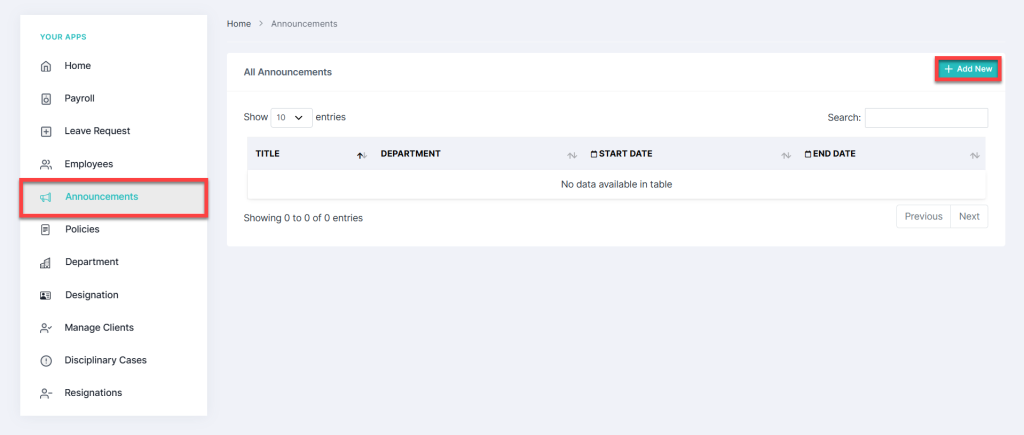
Once logged in, navigate to the “Announcements” tab. This section serves as the central hub for managing company-wide announcements. Here, you can view, edit, and add new announcements.
Steps to Add an Announcement in HRMS
To create an announcement, follow these steps:
- Click on the “Add New” button located at the top right corner.
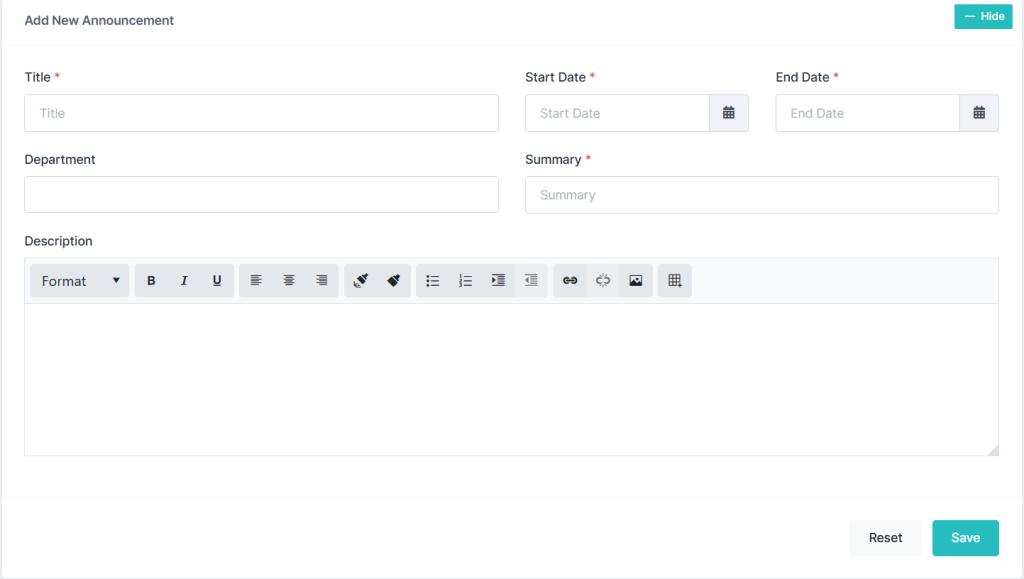
- A new form will appear, prompting you to enter announcement details.

Entering Announcement Details in HRMS
When adding an announcement, you will need to provide the following details:
- Title: Enter a concise and clear title for the announcement.
- Start Date & End Date: Click on the date fields, and a calendar will pop up. Select the desired duration for the announcement.
- Department: Choose the department(s) for which the announcement is relevant.
- Summary & Description:
- Add a brief summary for quick reference.
- Provide a detailed description using the text editor, which includes formatting options like bold, italic, underline, hyperlinks, images, and bullet points.

Saving or Resetting an Announcement in HRMS
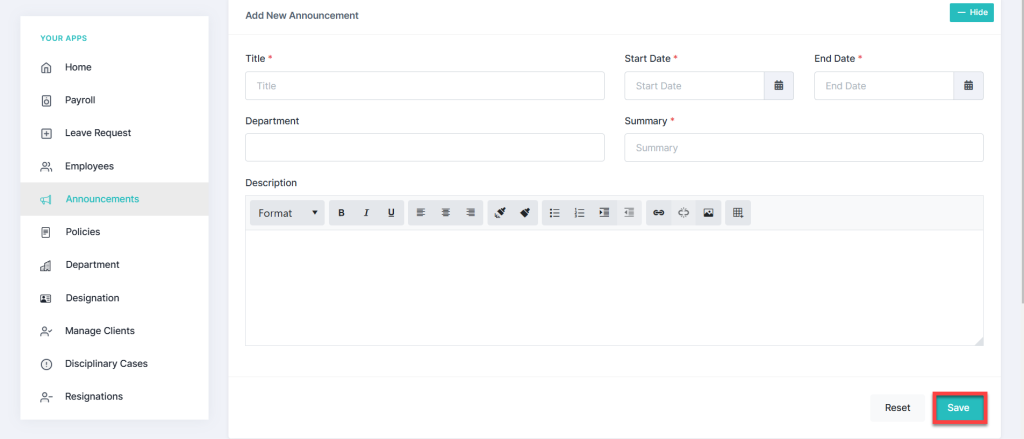
Once all details are entered:
- Click the “Save” button (bottom left corner) to publish the announcement.
- If needed, click “Reset” to clear the form and start over.

Viewing & Searching Announcements
After saving, the announcement will appear in the list of announcements. To find a specific announcement:
- Use the Search Bar at the top right corner.
- Filter announcements by date, department, or keywords.
Conclusion
Adding an announcement in HRMS is a simple yet essential process for ensuring smooth internal communication. By following these steps, you can efficiently share updates with relevant employees. Make it a practice to review and update announcements regularly to keep your workforce informed and engaged. For any further assistance, feel free to contact us.